Configuring location tracking
Related Video: Location Management
Location tracking lets administrators monitor and maintain their device inventory. Location management is available for Windows, iOS, and Android devices, but not for macOS devices.
Android and iOS: Enable location tracking
KACE Cloud Connect app must be installed and approved on managed iOS and Android devices in order to enable their location tracking. This app is not required to track the location of managed Windows devices.
|
|
NOTE: On fully managed Android devices, to enable location tracking using the KACE Cloud Connect app, the managed device must have the Google Location Accuracy setting turned on. |

The app is automatically imported into the library for iOS devices. To manage location tracking for Android devices, the administrator must add the KACE Cloud Connect app to KACE Cloud. For more information about this app, see Using KACE Cloud Connect.
In the case of devices without a user logged in with an Apple ID, the Apple VPP program allows an admin to obtain a license for an app and assign it to a device rather than to the user of a device. To do this, an admin can 'buy' the free KACE Connect app in their Apple Business Portal. When assigning a location configuration to a device, the KACE Connect license will be automatically assigned to the device.
To add the KACE Connect Android app to the Apps Library:
- Go to the Libraries tab.
- Click the Apps icon.
-
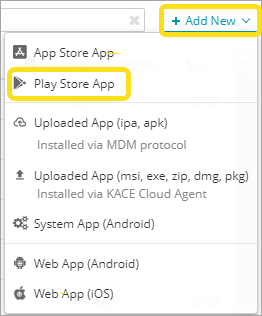
Choose Add New > Play Store App.
- Type KACE Connect.
- In the list of apps that appears, click KACE Connect, then click Select.
- Click Configure 1 selected app.
- Select one or more of the following check boxes, as applicable:
- Automatically keep these apps up to date: Allow KACE Cloud to automatically install the app updates as they become available.
- Publish these apps to the app catalog: Allow device users to install this app through the KACE Cloud Connect app.
-
Click Import.
Add new rule set
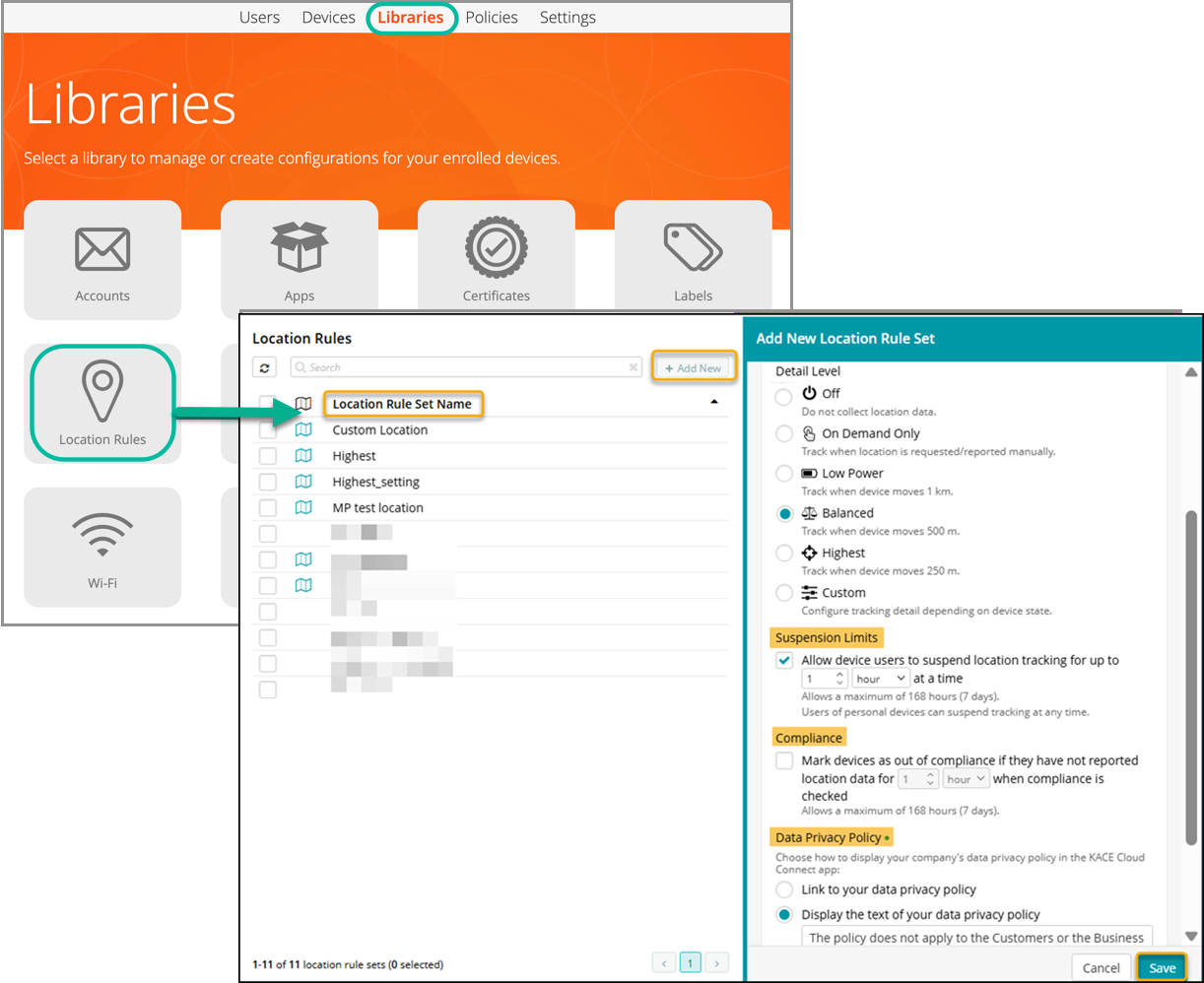
- Go to Libraries in top navigation.
- Select Location Rules.
- Click Add New.
- Configure the rule set.
- Name: Mandatory. The parameters of rule sets can vary greatly, so it’s important to create a distinct and utilitarian name for each.
- Description: Optional but recommended. Depending on the size of your organization and the variety of rule sets you create, it is always helpful to create a record of why the rule is being created and listing any special notes that could easily be forgotten.
- Detail Level: The detail level allows an admin to decide whether or not to enable data collection. And if enabled, whether to capture data in an on-demand capacity; regulate itself when the device is on low power; set a balanced limit; set the highest possible tracking levels, or to create a custom configuration for tracking detail.
- Suspension Limits: An admin can set a limit that will allow end users to suspend location tracking on their device for various time frames in minutes, hours, or days. Note that users with personal devices can suspend location tracking at any time.
- Compliance: The compliance setting lets an admin mark devices as out of compliance if they have not reported a data location for a set amount of time (hours or days) when compliance is checked.
- Data Privacy Policy: An admin can choose how to display the company’s data privacy policy to an end user—either through a link to the policy that will open a new window, or by pasting the full text of their policy into the KACE Cloud form to display within the workflow. Note that if a link is used, it must reference a secure https URL.
- Click Save.
The admin must approve the KACE Cloud Connect app on the Settings > Android Settings > Managed Google Play page.
Edit rule set
- Go to Libraries in top navigation.
- Select Location Rules.
- Select an existing rule set name.
- Click Edit.
- Make any changes to the rule set options.
- Click Save.
Remove rule set
- Go to Libraries in top navigation.
- Select Location Rules.
- Select an existing rule set name.
- Click Remove.
- Click Confirm.
Link rule to policies
To link rules to users and devices, use Policies.
- Go to the Policies section in top navigation to open the policy library.
- Click an individual policy to open the policy details.
- In the right pane, in the Resources tab, click Add Resources to open the drop-down list.
- Select Location Rules from the list to open the Add Resource -Location Rules dialog.
- Slide the Link toggle to link/unlink the location rule.
- To link the location rule to policy, slide the Link toggle to right. The color of the toggle changes to green indicating the Location Rule is linked.
- To unlink a previously linked location rule, slide the Link toggle to left. The color of the toggle changes to red indicating the Location Rule is unlinked.
- (Optional) In the Options column, click the icon to open Resource Options dialog. Select one of the following Compliance Type:
- Include - Select this option to include the resource when determining the compliance status.

NOTE: By default, all the Resources in a policy are included in compliance checks.
- Exclude - Select this option to exclude the Resource when determining the compliance status.
- Include - Select this option to include the resource when determining the compliance status.
- Click Add Resources to attach the Location Rule to the policy.
- Click Push Resource to deploy the added Location Rule to the target devices or users.
Notifying end users: Once changes have been successfully pushed, notify your end users that the KACE Connect app has been deployed to their device.
|
|
NOTE: The end user must then open the app on their device and follow the prompts to allow location tracking—and for iOS, notifications. |
.png)
It's important to make it clear to end users that the app will be deployed to their device by an admin. If the KACE Connect app is downloaded by the end user from the app store, it will trigger an error. No downloading on the part of the end user is required.